
If you have problems with the shop during checkout, we recommend going through the following steps:
Quicksteps #
See detailed walkthrough below
1. Clear Browser Cache & Cookies #
Old cookies or session data can cause reCAPTCHA to behave erratically.
- Clear cookies and cache.
- Reload the page.
2. Use a Different Browser or Incognito Mode #
Sometimes browser extensions interfere with reCAPTCHA.
- Open the shop in private/incognito mode.
- Alternatively, try a different browser.
3. Avoid VPNs or Proxies #
reCAPTCHA may block or challenge IPs from:
- VPNs
- Public proxies
- Tor networks
Try accessing the site using your normal home connection without a VPN.
4. Check for Malware or Unusual Browser Behavior #
Bots or suspicious browser behavior may trigger reCAPTCHA.
- Run a malware scan.
- Disable suspicious extensions (especially those that automate clicks or inputs).
5. Reduce Rapid or Repetitive Actions #
Clicking multiple times or refreshing repeatedly can trigger suspicion.
- Wait 10–15 minutes.
- Try again with slow and single-step actions.
6. Check if IP Is Blocked or Blacklisted #
If your IP address has been flagged (e.g. from datacenter IP ranges), contact your ISP or switch your network (e.g. to mobile hotspot).
As Google reCAPTCHA is a service provided and managed entirely by Google, we as the shop owner unfortunately have no ability to influence or customize how it functions. We sincerely apologize for any inconvenience this may cause and appreciate your understanding.
Detailed Walkthrough #
1. Clear Website Cookies & Cache #
Old cookies or session data can cause reCAPTCHA to behave erratically. Clear Cookies and cache, then reload the page:
If your browser is different, pls. check in Google how to delete cookies for a website in your browser.
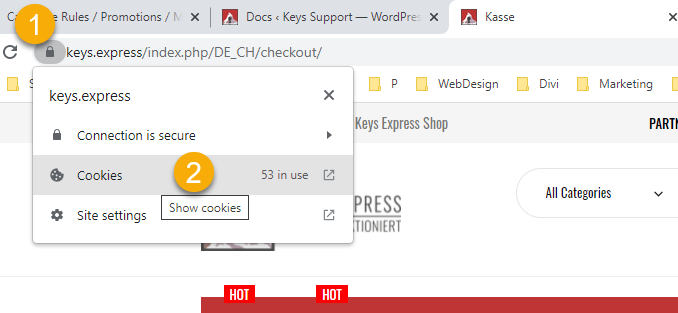
- Click on Padlock icon
- Click on Cookies
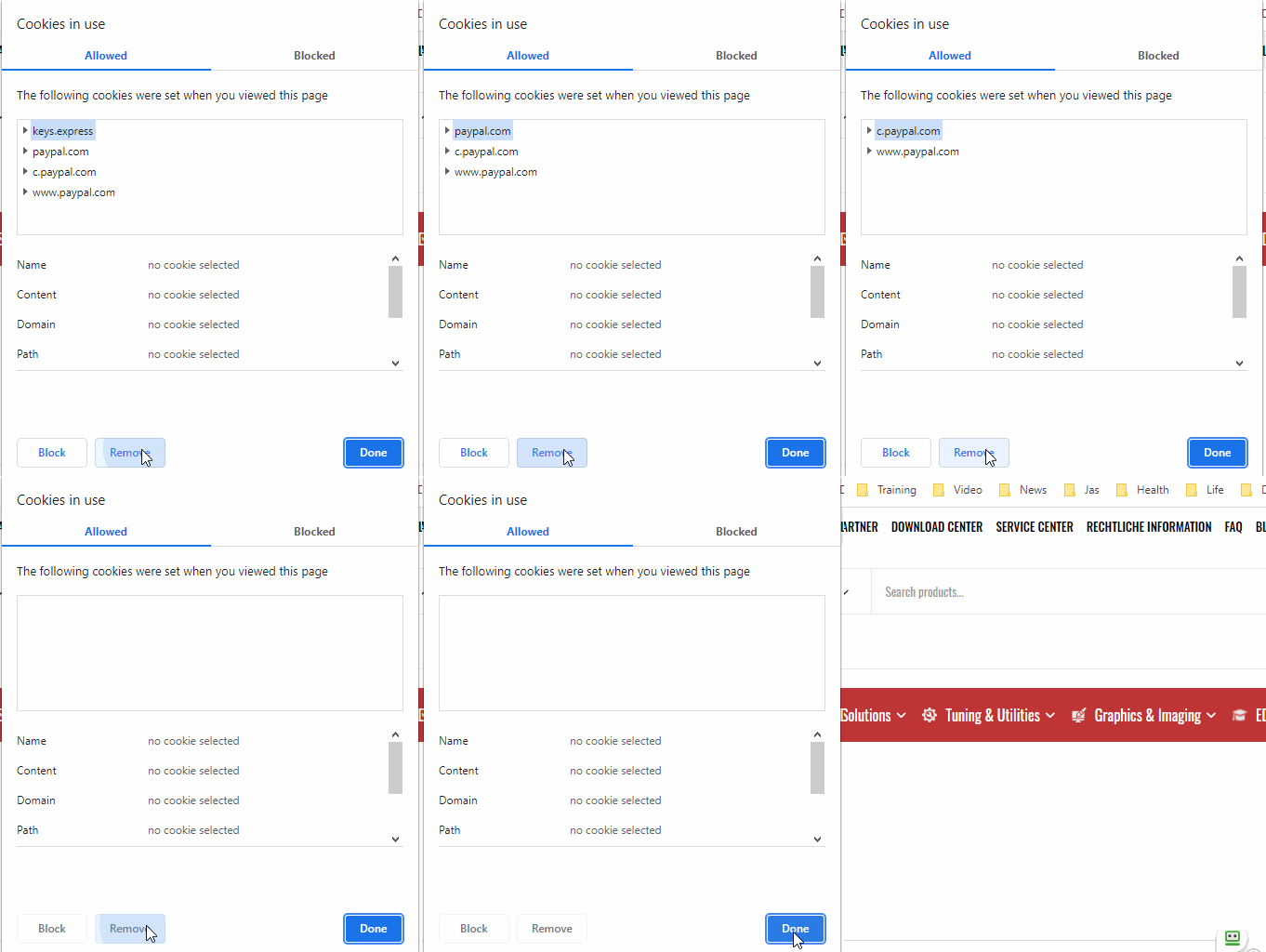
3. Click on the first group of cookies
4. Click on Remove repeatedly, until all cookies are gone
5. Click Done
Mac users, pls. consult this tutorial.
Accept all cookies from the keys.express shop #
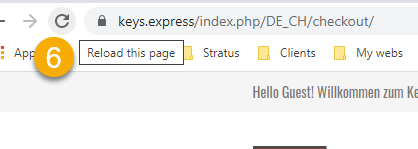
6. Reload the page and clear browser cache: hold CTRL+click reload
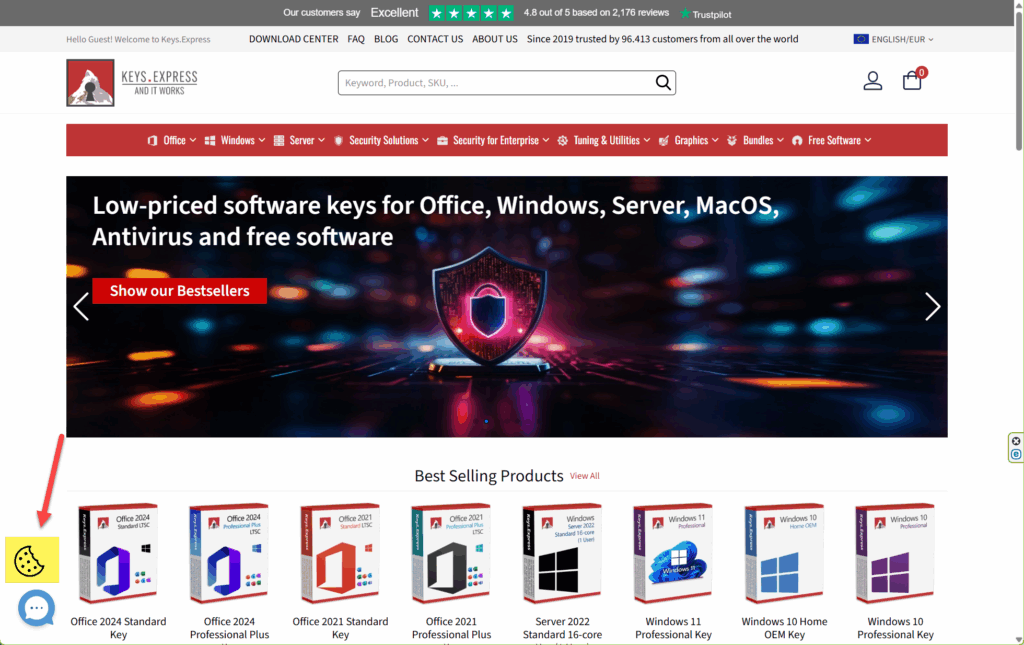
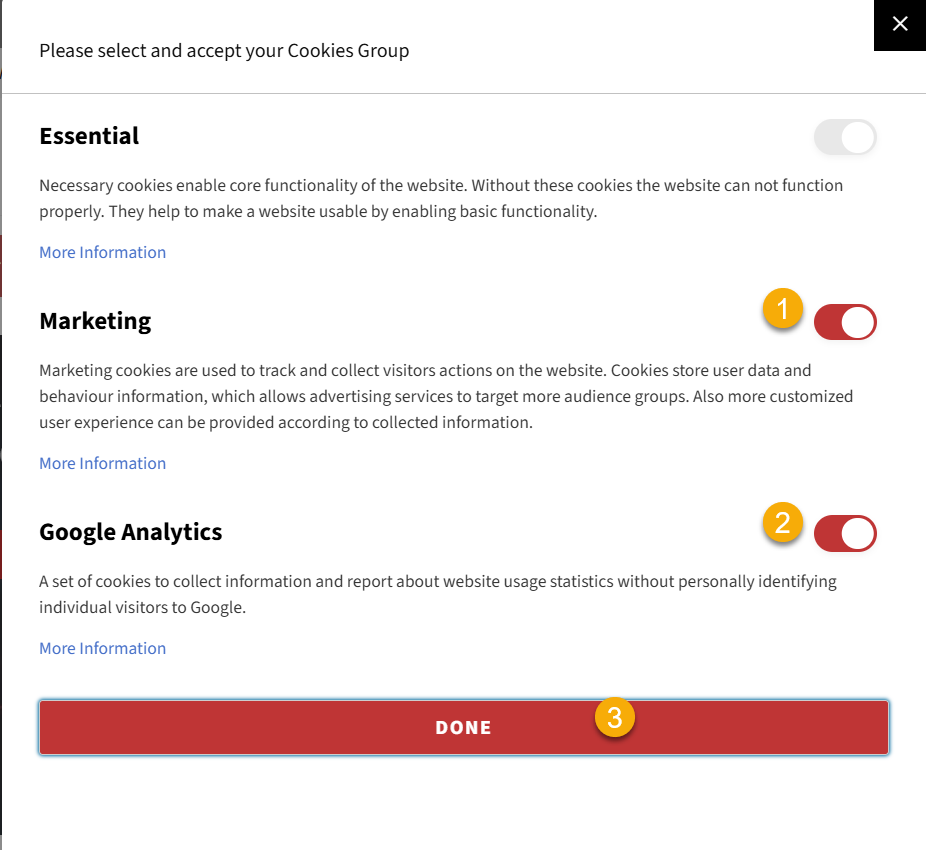
Wait for the cookie icon to appear on the bottom left and click on it. This will open up the cookie settings.
You can set the cookie preference here. You can:
1. Allow Marketing cookies
2. Allow Analytics Cookies
and then click DONE
Clear Browser Cache for this site #
Check how to clear the cache for your specific browser.
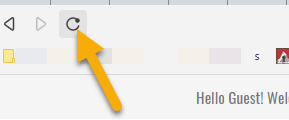
If you experience problems with our website, clear your site cache by pressing CTRL+click on reload in your browser. This will load everything fresh from the server:
Now the website should behave normal again.
2. Use a Different Browser or Incognito Mode #
Sometimes browser extensions interfere with reCAPTCHA.
Open the shop in private/incognito mode.
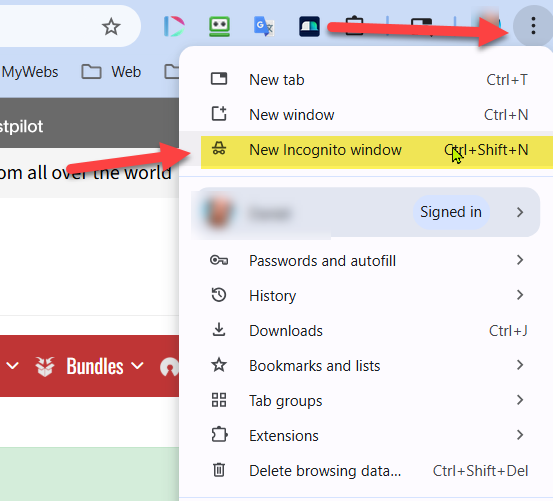
Alternatively, try a different browser:
- Mozilla Firefox
- Microsoft Edge
- Opera
- Brave
- Vivaldi
- Safari
- Chromium
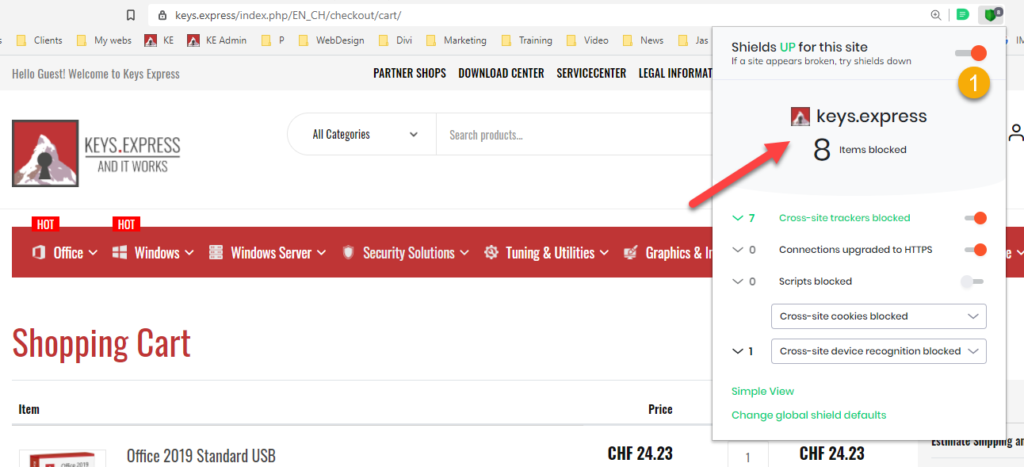
Disable Popup Blockers & Internet Shields #
Please disable Popoup Blockers and Internet shields for this site
Mac users pls. consult this tutorial.
3. Avoid VPNs or Proxies #
reCAPTCHA may block or challenge IPs from:
- VPNs
- Public proxies
- Tor networks
Disable VPN Connection on Windows
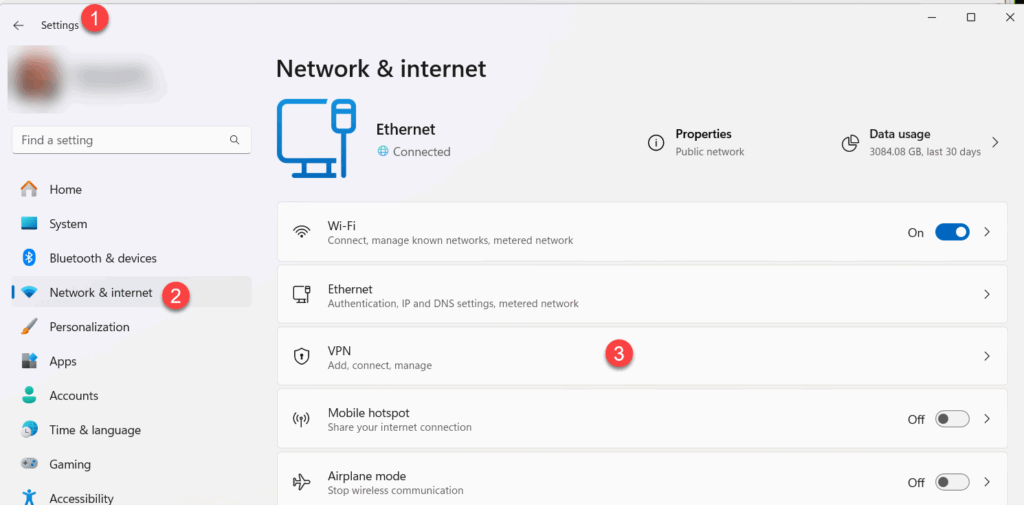
1. Open Settings: You can press the Windows key + I, or go to the Start menu and select Settings.
2. Navigate to Network & Internet: In the left-hand panel of the Settings app, click on Network & Internet.
3. Select VPN: Click on the VPN option in the left-hand panel.
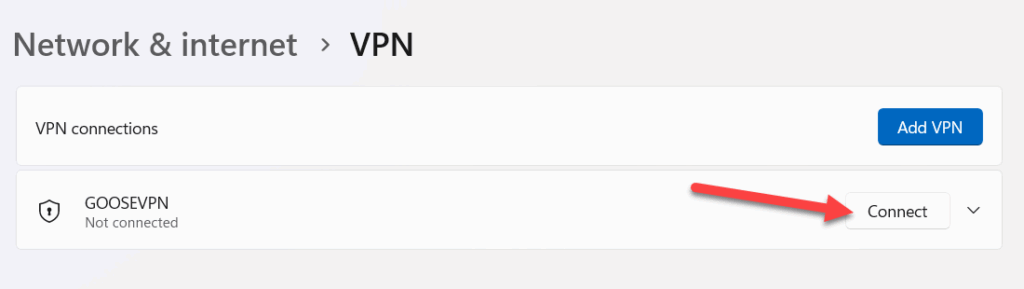
4. Disconnection: Find the VPN connection you want to disable and click the “Disconnect” option.
4. Check for Malware or Unusual Browser Behavior #
Bots or suspicious browser behavior may trigger reCAPTCHA.
- Run a malware scan.
- Disable suspicious extensions (especially those that automate clicks or inputs).
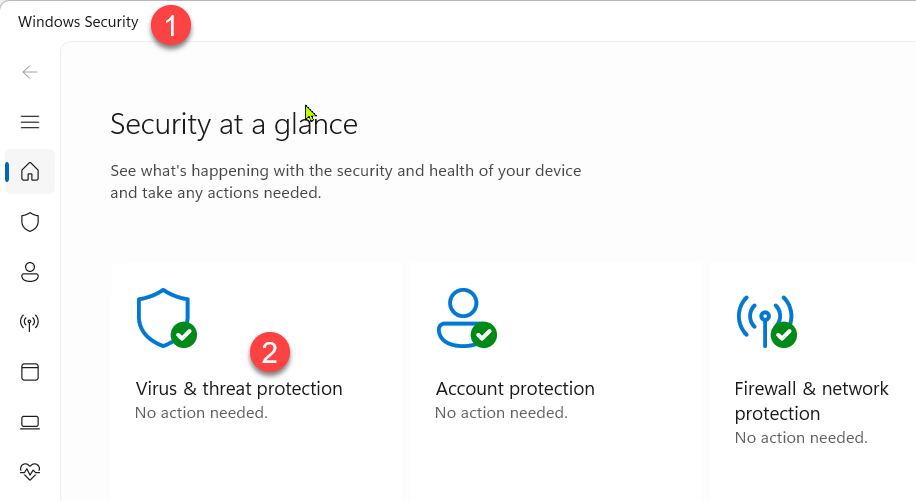
To scan for malware on Windows, open the Windows Security app and go to “Virus & threat protection”. Then, you can choose between a “Quick scan” or, for a more thorough check, select “Scan options” and run a “Full scan“.
Detailed steps:
1. Open Windows Security: Search for “Windows Security” in the Start menu and open the app.
2. Navigate to Virus & Threat Protection: Click on “Virus & threat protection”.
3. Choose your scan type:
- Quick scan: This option scans common locations where malware is typically found.
- Full scan: This option scans your entire system for malware, which can take longer but provides a more thorough check.
- Custom scan: You can select specific files or folders to scan.
4. Microsoft Defender Offline scan: This option is useful for dealing with malware that is difficult to remove while Windows is running and will restart your computer.
5. Start the scan: Click “Scan Now” after selecting your desired scan type.
6. Wait for completion: The scan will run automatically, and Windows Defender will display any detected threats.
5. Reduce Rapid or Repetitive Actions #
Clicking multiple times or refreshing repeatedly can trigger suspicion.
- Wait 10–15 minutes.
- Try again with slow and click one action after the other.
6. Check if IP Is Blocked or Blacklisted #
If your IP address has been flagged (e.g. from datacenter IP ranges), contact your ISP or switch your network (e.g. to mobile hotspot). You could also try to unplug your ISP router for 5 minutes; as sometimes you will get a new IP address.
Enjoy your shopping experience #
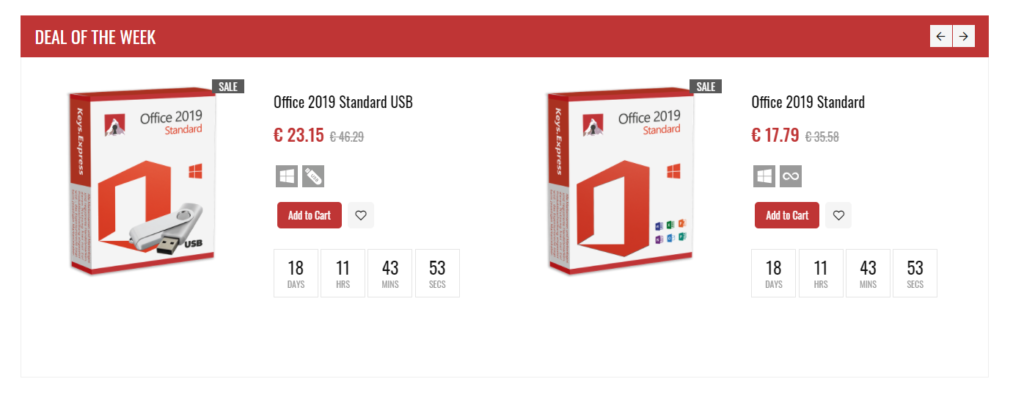
Visit our Deal of the Week section on our homepage at https://keys.express/ and start saving!
Note:
Since Google reCAPTCHA is a service that is fully provided and managed by Google, we as the shop owner do not have any control over its functionality or customization. We apologize for any inconvenience this may cause and appreciate your understanding.
Mac Users #
Pls. clear the History in your Safari Browser on MacOS
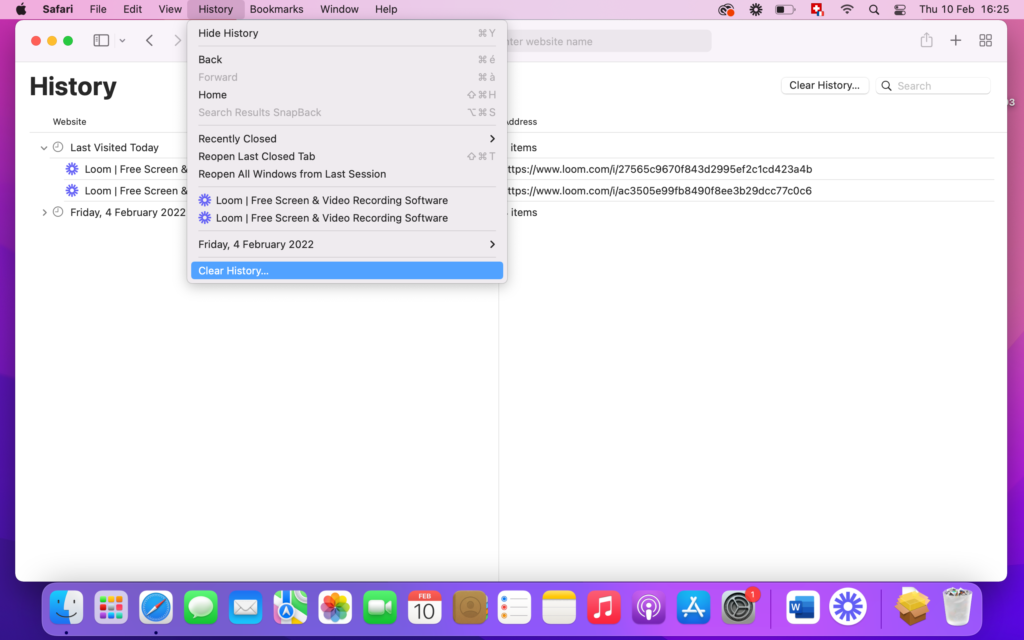
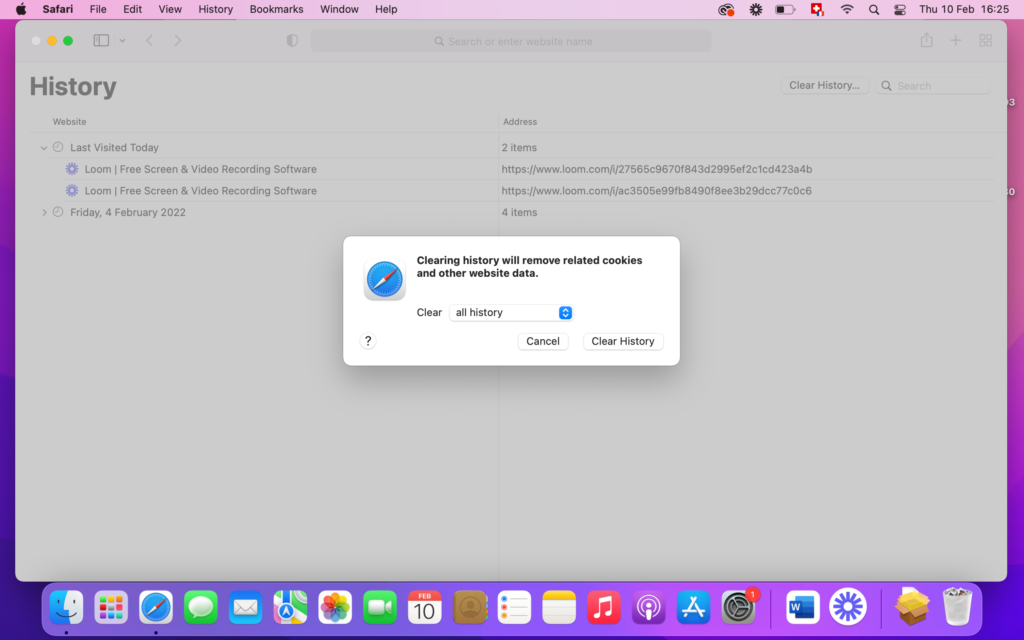
To delete Website Cookies consult this tutorial.
To enable PopUps on Mac consult this tutorial.
Still experience Problems? #
Pls. make sure you UPDATE your browser. We recommend Chrome Browser for Windows and Safari Browser for Mac and iPad.
Contact Us


