Customer registration #
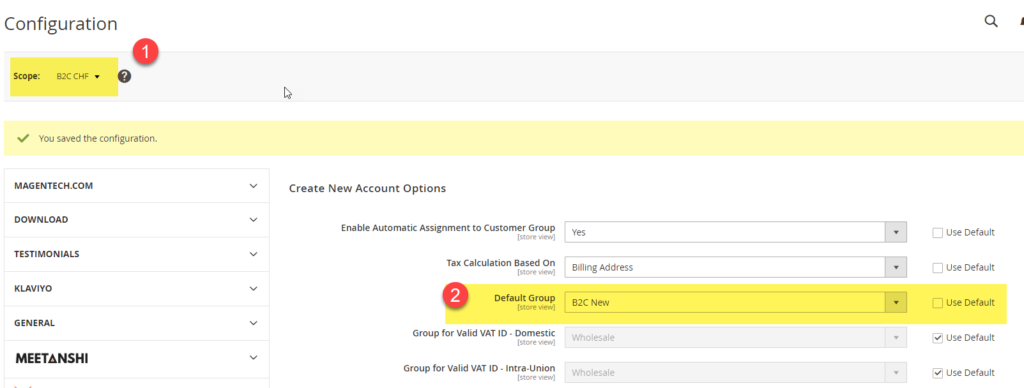
Assign default Customer Group
1. set scope to the correct B2C website
2. Select the customer group under Create New Account Options > Default Group
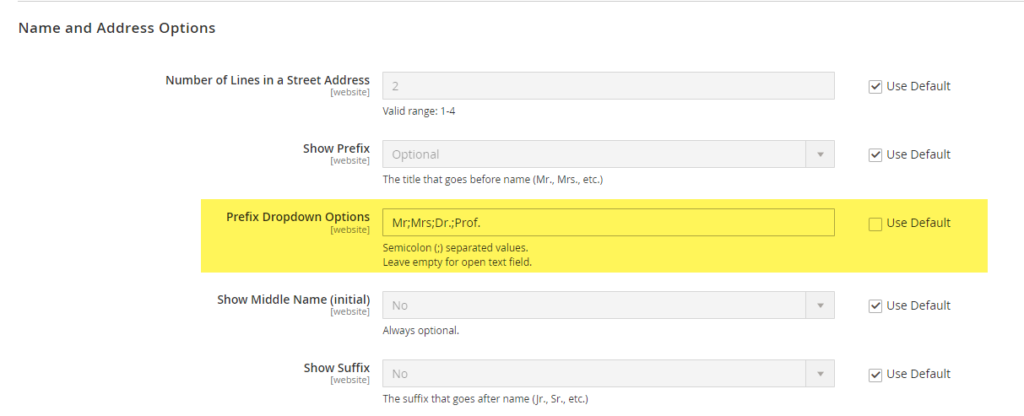
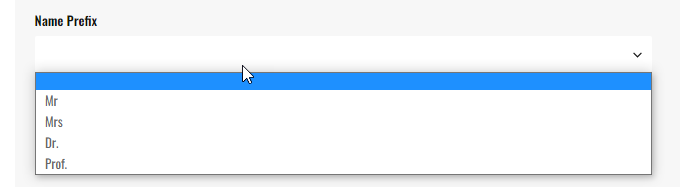
Enable Prefix / Title DropDown Mr, Mrs, Dr, Prof,
Price Display Setting (including tax) #
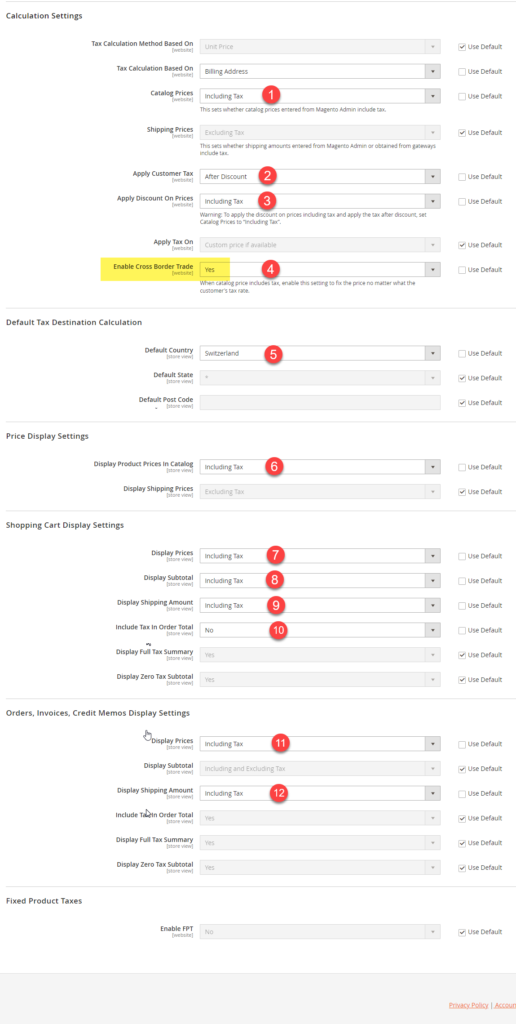
Set scope to B2C Website, then under Configuration > Sales > Tax configure the following settings
- Catalog Price = including Tax
- Apply Customer Tax = After Discount
- Apply Discount on Prices = Including Tax
- Enable Cross Border Trade = Yes (very important)
- Set Default Country to the B2C Country, e.g. Switzerland for the B2C_CH Website
- Display Product Prices in Catalog = Including Tax
- Shopping Cart Display Settings> Display Prices = Including Tax
- Display Subtotal = Including Tax
- Display Shipping Amount = Including Tax
- Include Tax in Order Total = No
- Orders, Invoices, Credit Memos Display Settings > Display Prices = Including Tax
- Display Shipping Amount = Including Tax
EU VAT Settings and automatic Customer Group assignment #
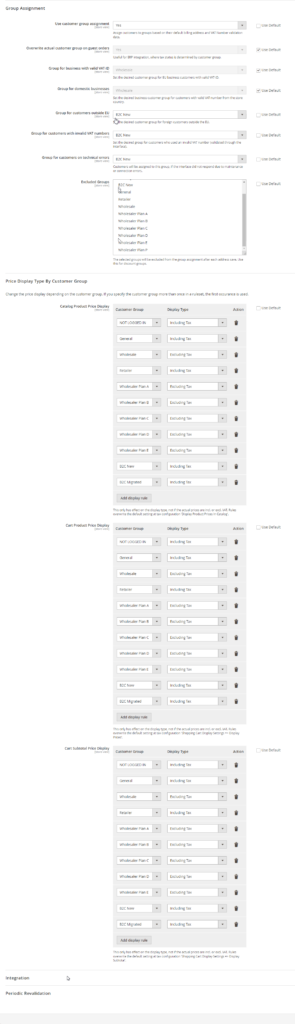
Configure the following settings under Configuration > Sales > EU VAT Enhanced (from plugin) to assign the correct customer groups based on VAT ID and which groups are shown prices incl or excl. tax.
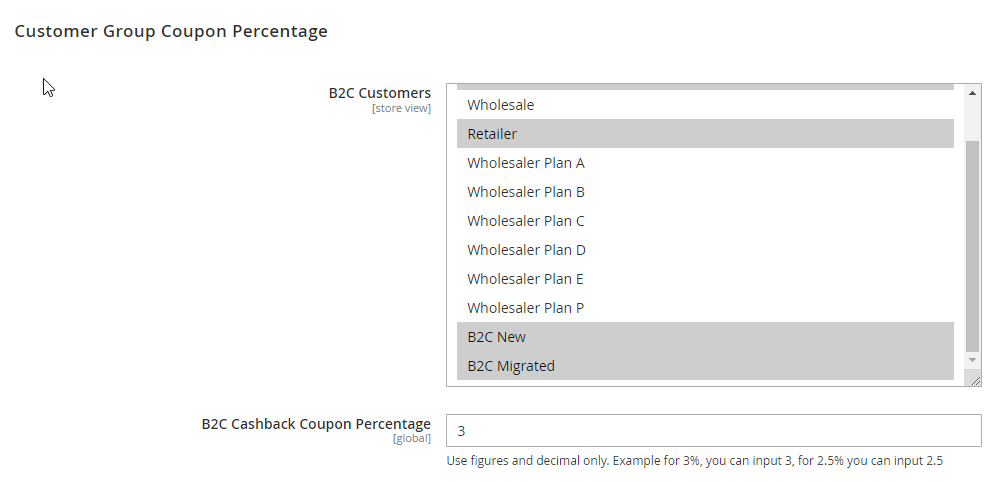
Cash Back coupons #
Set cashback coupon for B2C website to 3%. (Wait until this can be set only for B2C in the new website).
Stores > Configuration > KE Marketing > Cashback Coupon